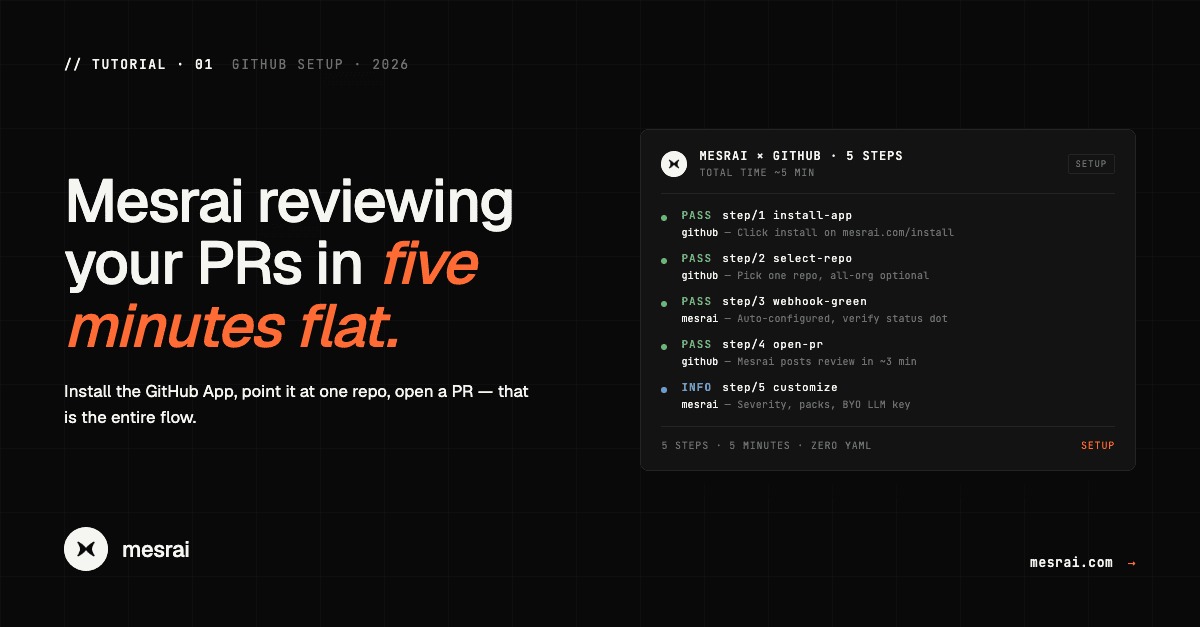
Five minutes is not marketing. It is the literal install-to-first-review time on a fresh repo, measured on the slowest of three test runs. This guide walks through every step, in order, so you can hit the same number.
What you need before you start
Three things:
A GitHub account with admin permission on the repo or org you want to install on. Admin is required because installing a GitHub App writes to repository settings.
A Mesrai account. Free for individuals, 14-day trial for teams, no card required. Sign up at mesrai.com.
Optional but recommended: a draft PR you can open after install, so you can see the review pipeline run end to end without waiting for real work.
Step 1 — Install the Mesrai GitHub App
From mesrai.com, click Install on GitHub. You will be redirected to GitHub's app installation flow, where you select either:
All repositories — Mesrai will review PRs across the entire org as soon as they open. Recommended for a trial since it removes per-repo opt-in friction.
Only select repositories — pick one or more. Useful if you want to gate the rollout to a single team or service first.
If your org requires admin approval for new GitHub Apps, the install will pause until an org admin approves it. Get that approval before continuing — the rest of the flow assumes the app is installed.
Step 2 — Pick the repo to review first
Back in the Mesrai dashboard, the connected repos appear. Pick the one you want to enable. If you installed for the whole org, all repos are auto-enabled but you can disable per-repo from this screen.
For the first repo, we recommend a service that is:
Active — at least a few PRs per week, so you see the value quickly.
Bounded — a single language or small set, so the review feedback is easy to evaluate.
Yours — a repo where you are the reviewer, so you can compare Mesrai's comments to what you would have caught yourself.
Step 3 — Verify the webhook is healthy
The Mesrai dashboard shows a connection-status indicator for each repo. Green means webhooks are firing and Mesrai has acked them. Yellow means installed but no event received yet. Red means the webhook is failing — check the GitHub App's recent deliveries panel.
In 95% of installs, this is green within seconds. If yours is yellow for more than a minute, the most common cause is org-level webhook restrictions. Fix that one config in GitHub and the dot turns green.
Step 4 — Open a PR (or use the one you already have)
This is the entire test. Open any PR to a branch the repo's review rules cover (usually `main` or `develop`). Wait about three minutes.
Mesrai will post:
A summary review comment on the PR, listing what it found and what it checked.
Inline comments on the specific lines that triggered findings — same surface your team already uses, no separate dashboard.
A severity label on each comment so reviewers can sort by what matters.
Step 5 — Customize for your team
By default Mesrai uses sensible settings: medium severity threshold, standard rule packs, the bundled LLM. Three things teams usually tune in week one:
Severity threshold. If you want fewer comments, raise to High. If you want every nit, lower to Low. We default to Medium because that is where the signal-to-noise ratio peaks.
Rule packs. Mesrai ships with security, performance, architecture, and style packs. Each can be enabled or disabled per repo. Most teams keep all four on for the first month, then trim.
BYO LLM key. If you have your own Anthropic, OpenAI, or DeepSeek key, paste it in and Mesrai will route review calls through your account. Your data never leaves the path you control. Most paying teams move to BYOK in week two.
# Optional .mesrai.yml in repo root
severity: medium
packs:
  - security
  - performance
  - architecture
  - style
llm:
  provider: anthropic
  model: claude-opus-4-7
Common installation problems and fixes
Webhook not firing. Org-level webhook IP restrictions. Add Mesrai's webhook IP range (in docs) to the allowlist.
Comments not appearing. Branch protection rules block PR-author bots. Make sure the Mesrai app is exempt from any push-restriction or required-status-check policy that would block its comment posts.
Comments appearing but on every PR. Severity is set to Low — raise to Medium or High.
That is it. Five steps, five minutes, your PRs are now reviewed. The next thing to do is open a real PR and read what Mesrai catches — that is the entire point.